The official line from Microsoft was that June 30, 2008, ended the era of Desktop and Laptop PCs shipped with the XP operating system. After 12 years, support for Windows XP ended April 8, 2014. Microsoft will no longer provide security updates or technical support for the Windows XP operating system. Windows XP can still be installed and activated after end of support. Computers running Windows XP will still work but they won’t receive any Microsoft Updates or be able to leverage technical support. Activations will still be required for retail installations of Windows XP after this date as well.
Following steps describe the procedure to circumvent Windows XP activation for clean install in case the COA label or activation code is lost.
1. Click on the "Start" button.
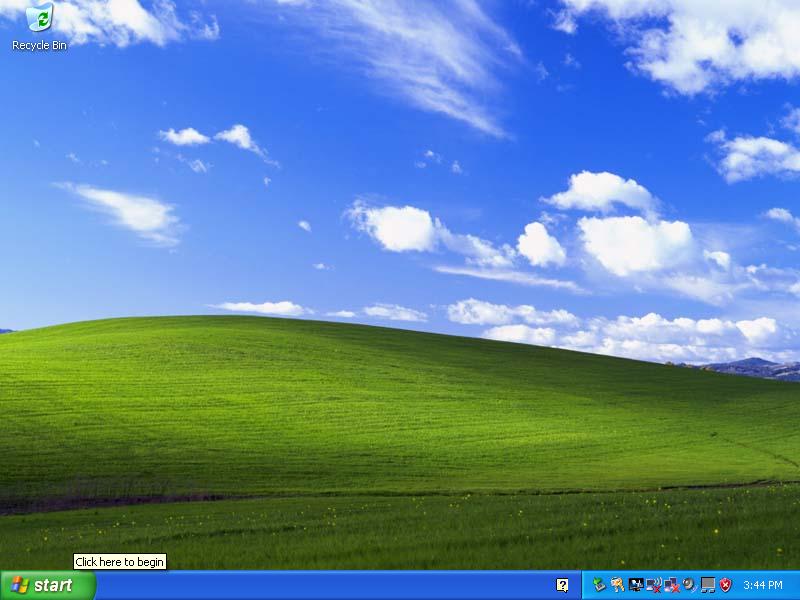
2. Find and click the "Run" button.
3. Type: "regedit".
4. Click the plus next to "HKEY_LOCAL_MACHINE".
5. Click the plus next to "SOFTWARE".
6. Click the plus next to "Microsoft".
7. Click the plus next to "Windows NT".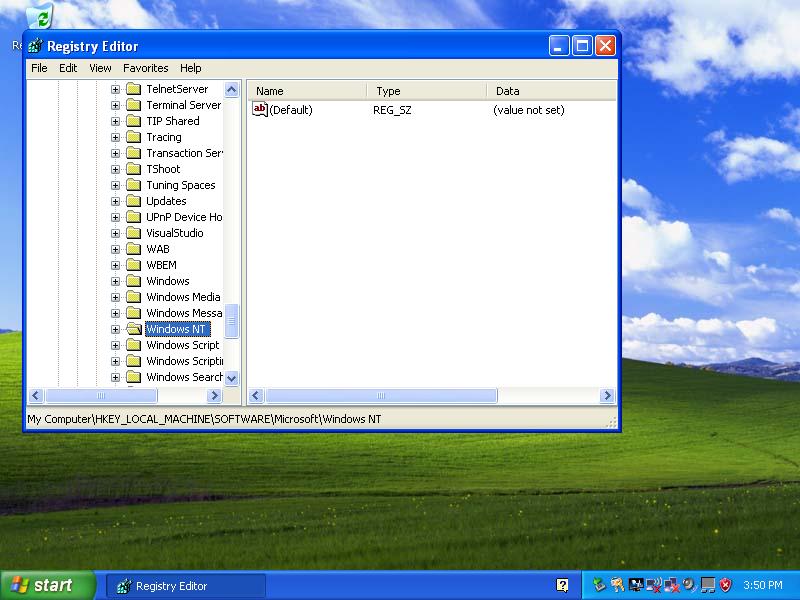
8. Click the plus next to "CurrentVersion".
9. Click "WPAEvents".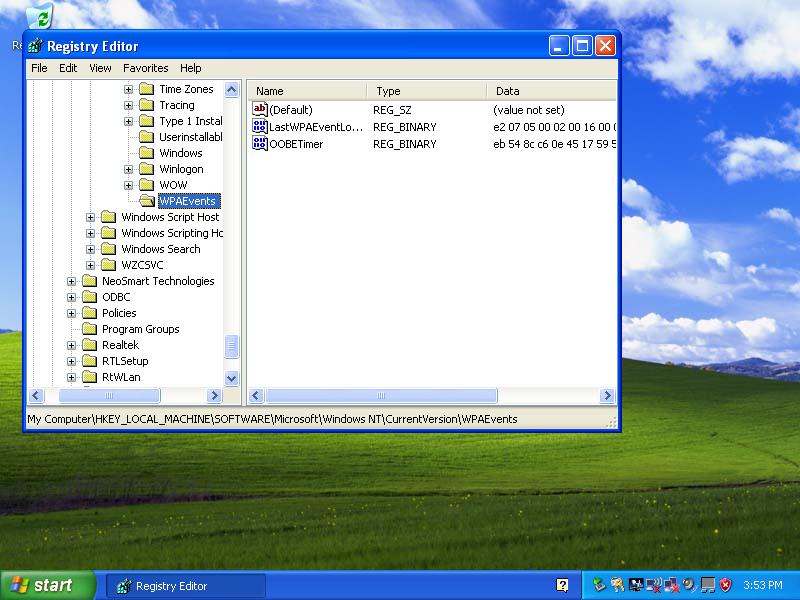
10. On the right panel, find "OOBETimer" and double click it.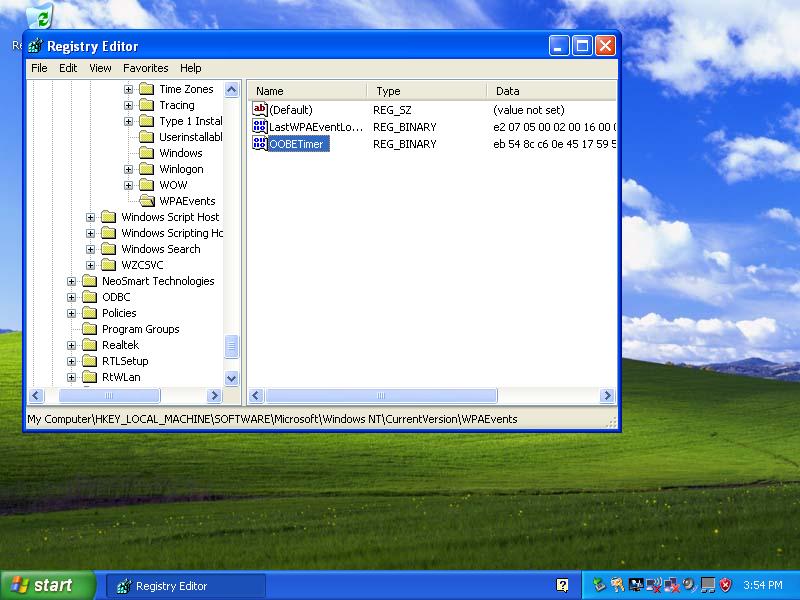
11. Now, highlight all values, then delete them.
12. Then type in the following value: FF D5 71 D6 8B 6A 8D 6F D5 33 93 FD.
13. After that, click "OK".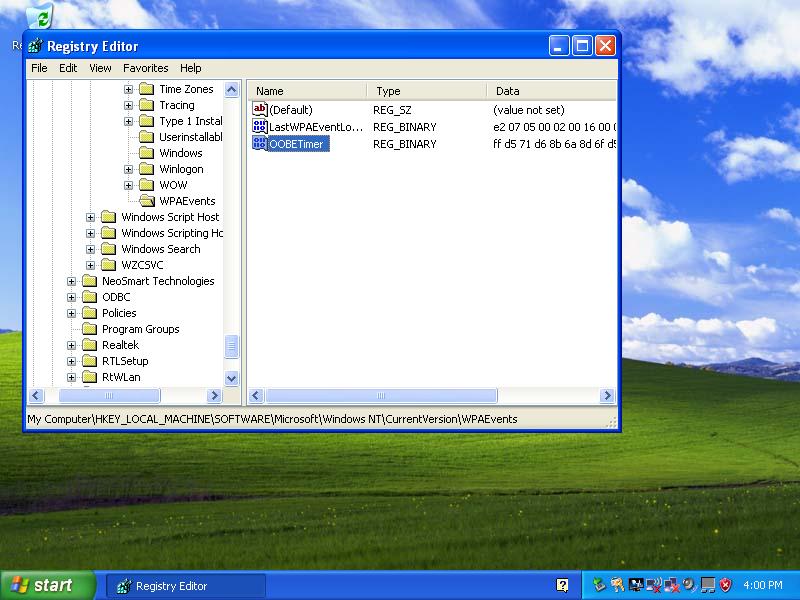
14. Next, on the left panel, right-click "WPAEvents".
15. Then click on "Permissions".
16. Click "SYSTEM".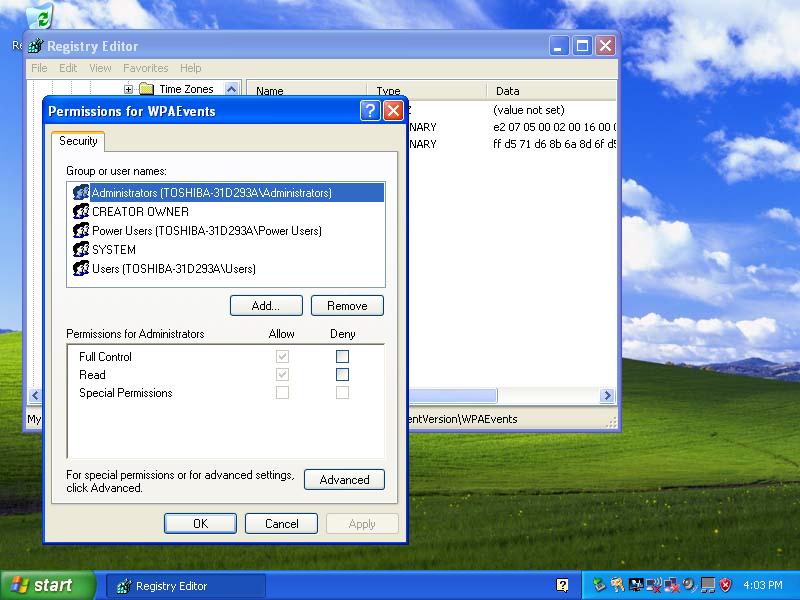
17. Click the box "Deny Full Control".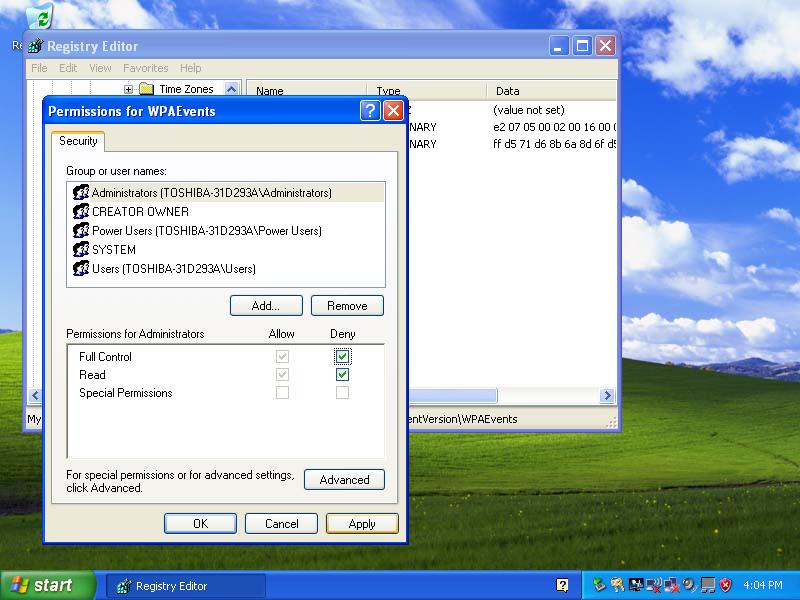
18. Click "OK".

19. Click "YES" and exit out of Registry Editor. You can do this by clicking on the red X in the upper-right corner of the Title Bar or, while holding down the ALT key, press the F4 key.


20. To verify that it works, Click on "Start" and then "Activate Windows" Or you can click on "Start", then "All Programs", then "Activate Windows".
If these options don't work, execute "Run" command as above. Type this text in the space provided: %systemroot%\system32\oobe\msoobe.exe /a

21. Choose "Yes, I want to telephone a customer service representative to activate Windows".
22. Click "Change Product key".
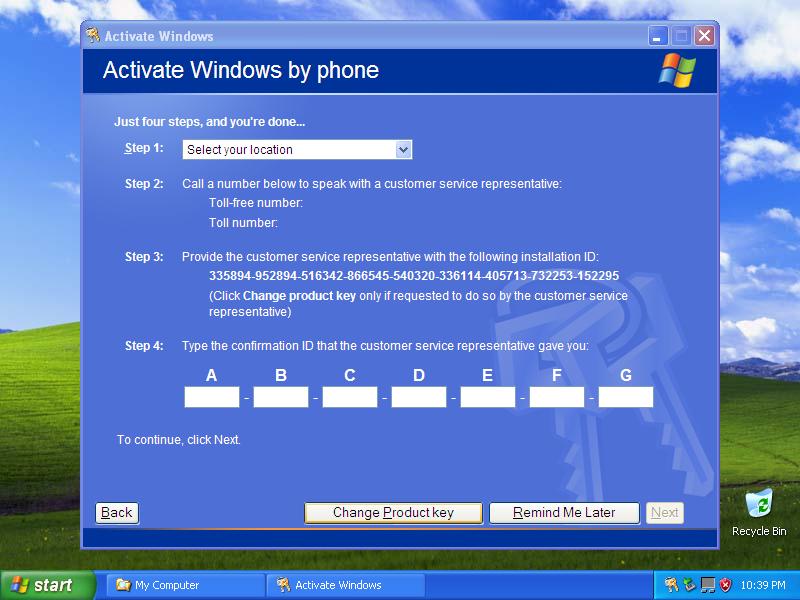
23. Type: THMPV - 77D6F - 94376 - 8HGKG - VRDRQ.

24. Click "Update".
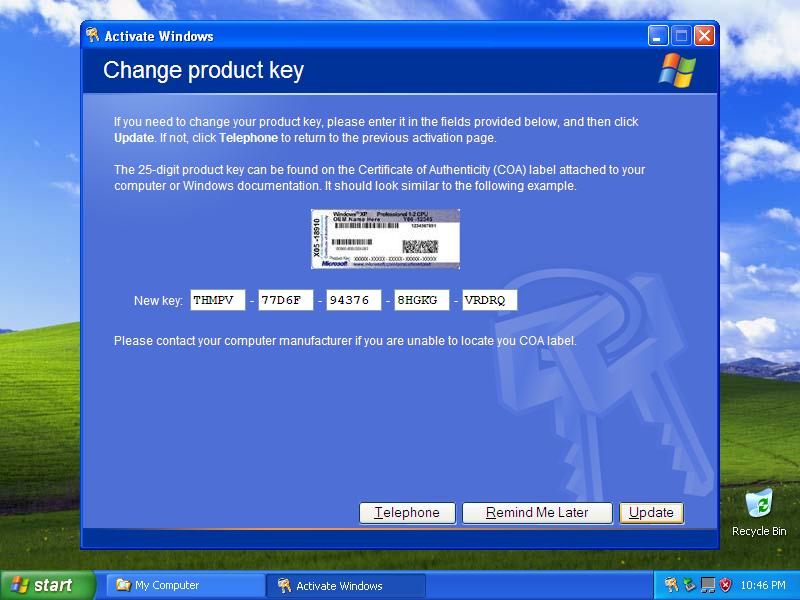
25. Click "Remind Me Later".
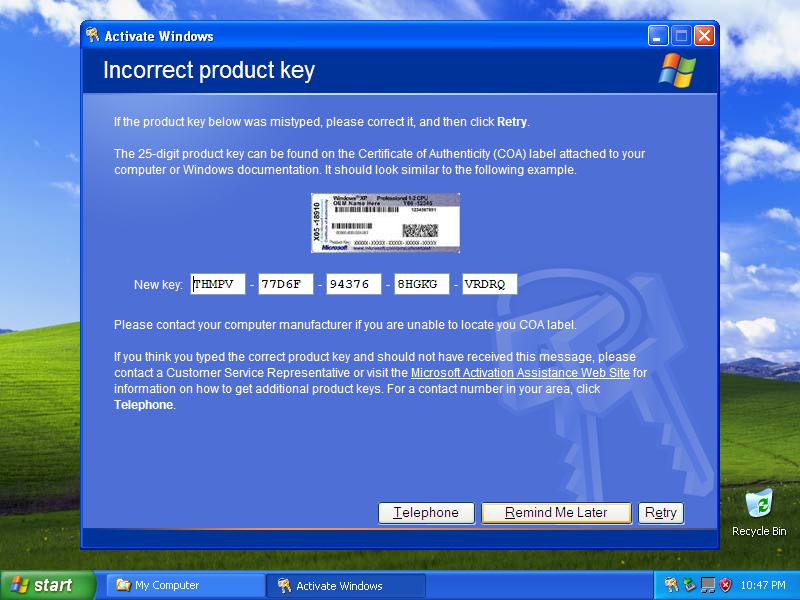
26. Restart Windows.
27. Once your computer is back up, execute "Run" command again. Type "rundll32.exe syssetup,SetupOobeBnk".
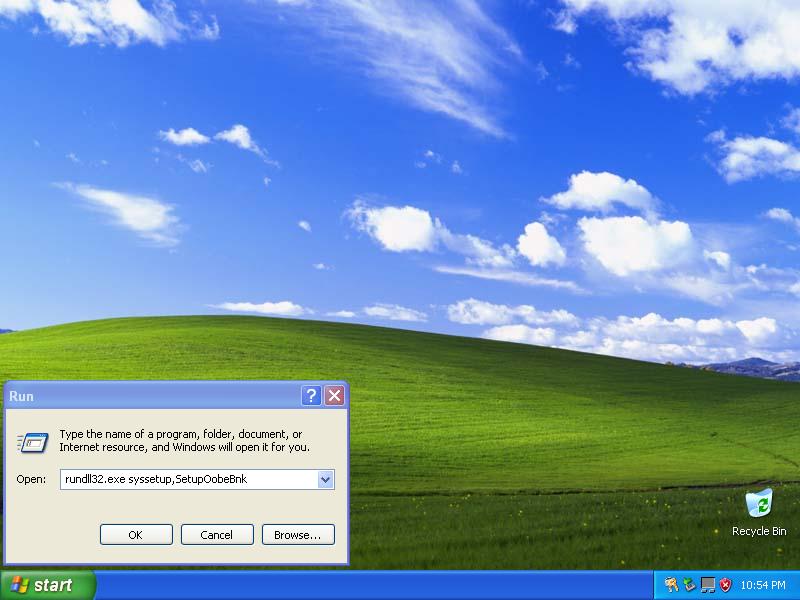
28. Click "OK".

29. In some circumstances. although Windows indicates that it is activated, it would still expire after 30 days and requires activation to log-on. To resolve the problem, follow the steps below.
30. Boot into "Safe Mode". To do this, turn the computer on and press F8 as it is booting up. Go into "Safe Mode" by choosing the "Safe Mode" option.
31. Once at the desktop in "Safe Mode", Click "Start" then click "Run". At the run command prompt type the following EXACTLY
rundll32.exe syssetup,SetupOobeBnk
32. Restart and boot it back into Safe Mode Command Prompt.
33. Install IE8.
Official Microsoft Internet Explorer 8 download link
34. Complete the install, restart and it should be good to go.
Source: How to Activate Windows XP Without a Genuine Product Key
.............This copy of Windows must be activated before you can log on.
Following steps describe the procedure to circumvent Windows XP activation for clean install in case the COA label or activation code is lost.
1. Click on the "Start" button.
2. Find and click the "Run" button.
3. Type: "regedit".
4. Click the plus next to "HKEY_LOCAL_MACHINE".
5. Click the plus next to "SOFTWARE".
6. Click the plus next to "Microsoft".
7. Click the plus next to "Windows NT".
8. Click the plus next to "CurrentVersion".
9. Click "WPAEvents".
10. On the right panel, find "OOBETimer" and double click it.
11. Now, highlight all values, then delete them.
12. Then type in the following value: FF D5 71 D6 8B 6A 8D 6F D5 33 93 FD.
13. After that, click "OK".
14. Next, on the left panel, right-click "WPAEvents".
15. Then click on "Permissions".
16. Click "SYSTEM".
17. Click the box "Deny Full Control".
18. Click "OK".
19. Click "YES" and exit out of Registry Editor. You can do this by clicking on the red X in the upper-right corner of the Title Bar or, while holding down the ALT key, press the F4 key.
20. To verify that it works, Click on "Start" and then "Activate Windows" Or you can click on "Start", then "All Programs", then "Activate Windows".
If these options don't work, execute "Run" command as above. Type this text in the space provided: %systemroot%\system32\oobe\msoobe.exe /a
21. Choose "Yes, I want to telephone a customer service representative to activate Windows".
22. Click "Change Product key".
23. Type: THMPV - 77D6F - 94376 - 8HGKG - VRDRQ.
24. Click "Update".
25. Click "Remind Me Later".
26. Restart Windows.
27. Once your computer is back up, execute "Run" command again. Type "rundll32.exe syssetup,SetupOobeBnk".
28. Click "OK".
29. In some circumstances. although Windows indicates that it is activated, it would still expire after 30 days and requires activation to log-on. To resolve the problem, follow the steps below.
30. Boot into "Safe Mode". To do this, turn the computer on and press F8 as it is booting up. Go into "Safe Mode" by choosing the "Safe Mode" option.
31. Once at the desktop in "Safe Mode", Click "Start" then click "Run". At the run command prompt type the following EXACTLY
rundll32.exe syssetup,SetupOobeBnk
32. Restart and boot it back into Safe Mode Command Prompt.
33. Install IE8.
Official Microsoft Internet Explorer 8 download link
34. Complete the install, restart and it should be good to go.
Source: How to Activate Windows XP Without a Genuine Product Key
.............This copy of Windows must be activated before you can log on.