Multiple operating systems can be installed on the same machine and one of them is selected during bootstrapping. Following steps describe the procedure to install Windows XP together with another operating system (Vista/7/10).
1. First of all, create two hard disk partitions for the two operating systems, Windows XP and Windows 7 respectively in this demonstration.
2. Install Windows 7 in the first partition.
3. Install Windows XP in the second partition. Note that Windows 7 becomes invisible because the boot loader contains entry for Windows XP only.
4. Modify boot loader to include Windows 7 entry. This can be accomplished with third-party software utility. EasyBCD is a freeware to accomplish the task. Download EasyBCD from the publisher website.
5. Microsoft .NET Framework 2.0 is required to run EasyBCD. Download .NET Framework 2.0 Service Pack 2 Update for Windows Server 2003 and Windows XP from official Microsoft website.
6. Install .NET Framework 2.0 Service Pack 2 Update for Windows Server 2003 and Windows XP.

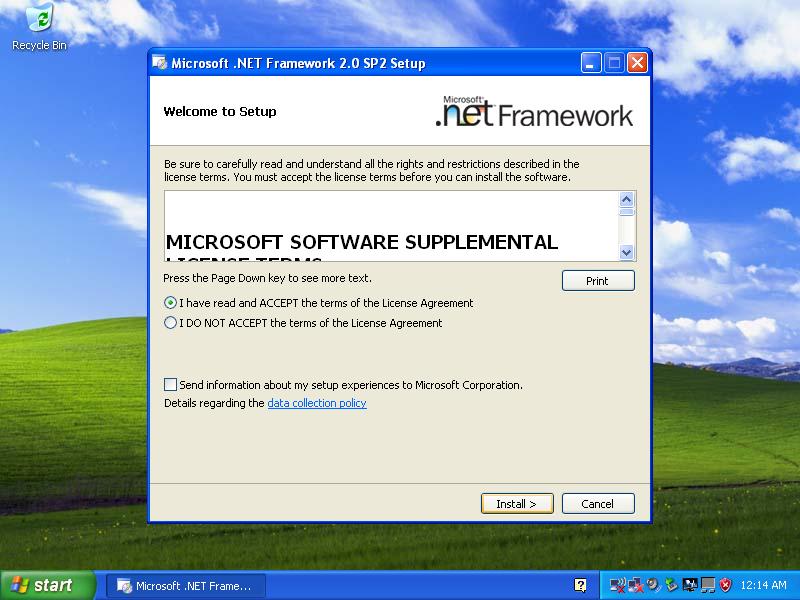
7. Select "I have read and ACCEPT the terms of the License Agreement". Click "Install" to proceed.
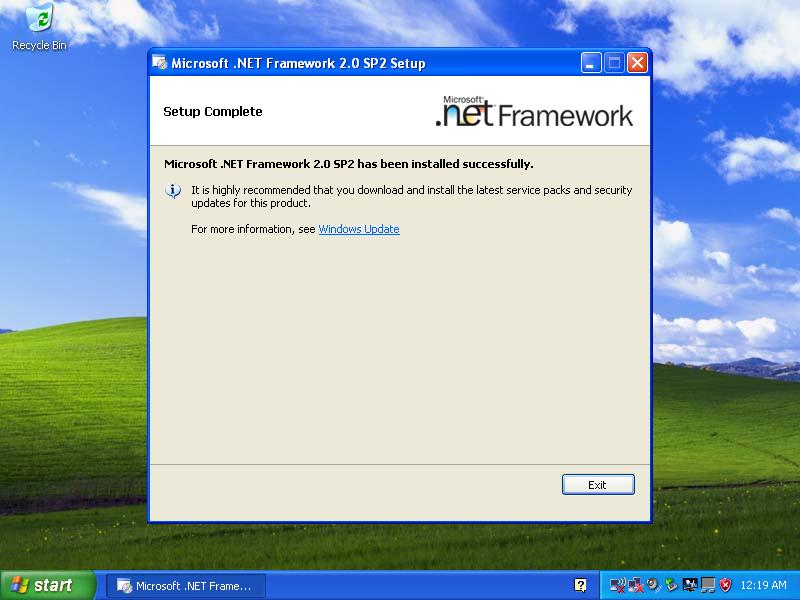
8. Click "Exit" to finish .NET Framework 2.0 installation.
9. Install EasyBCD.
10. Click "Next" to continue.

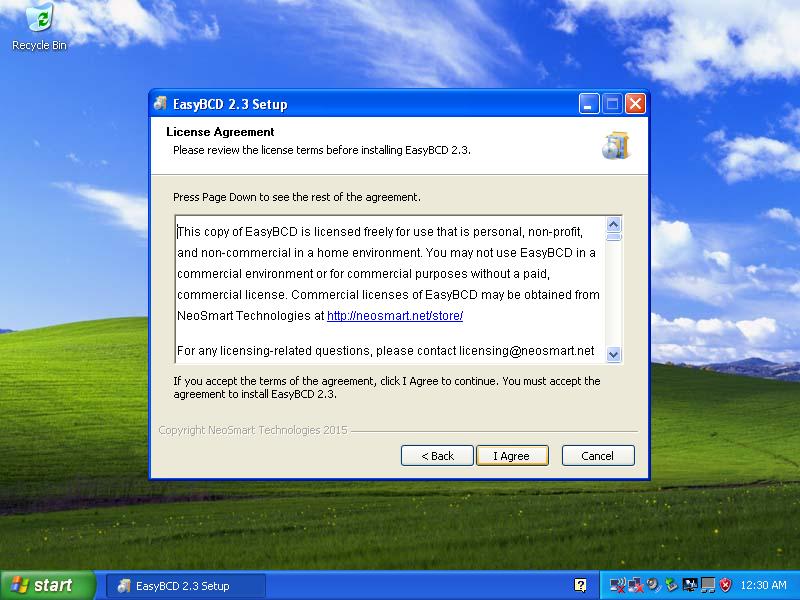
11. Click "I Agree".
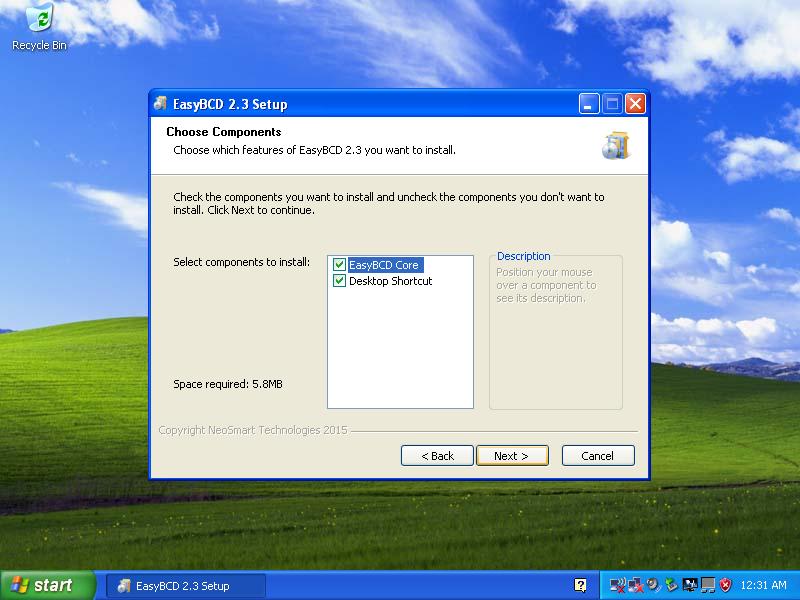
12. Click "Next".
13. Click "Install".

14. Click "Finish".
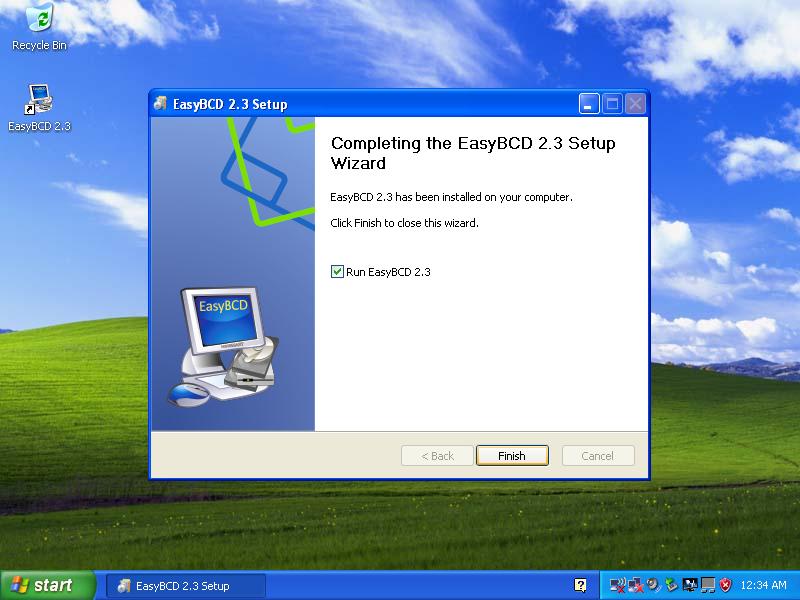
15. Click "Go".
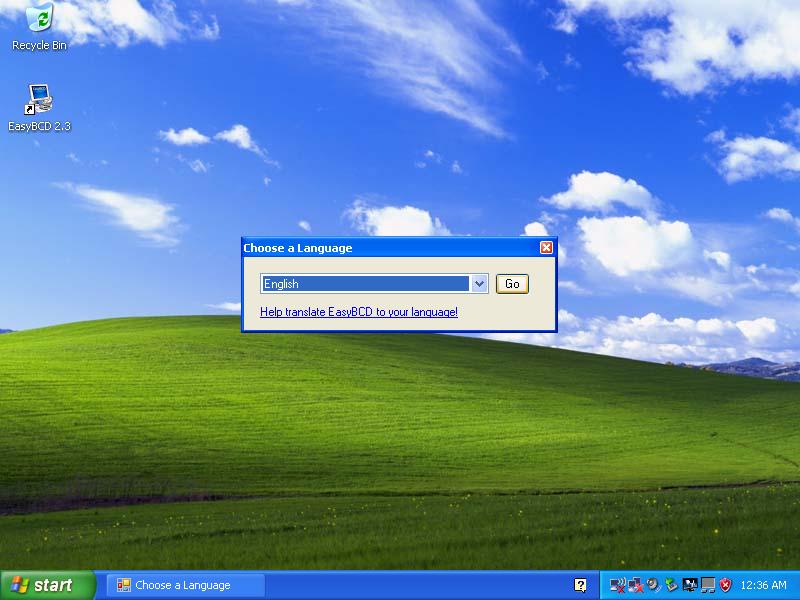
16. Click "Add New Entry".
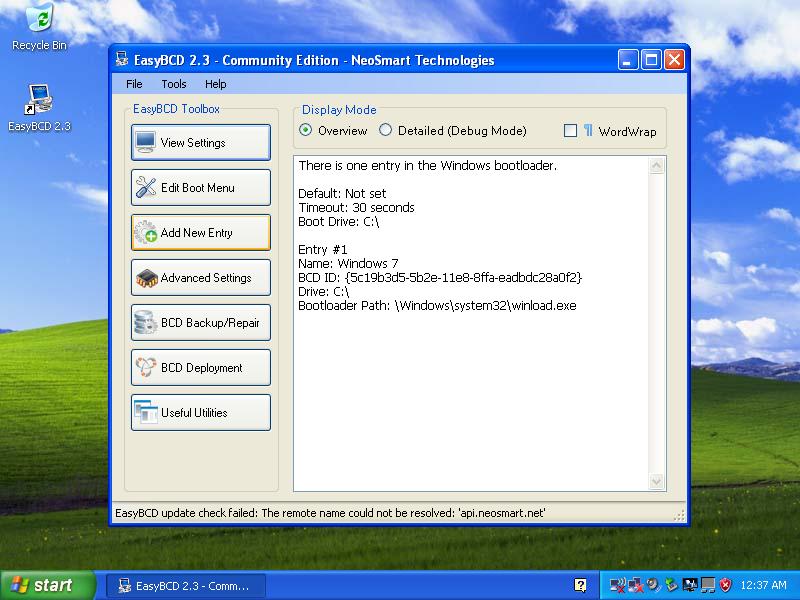
17. On Operating System menu, select "Windows NT/2k/XP/2k3".
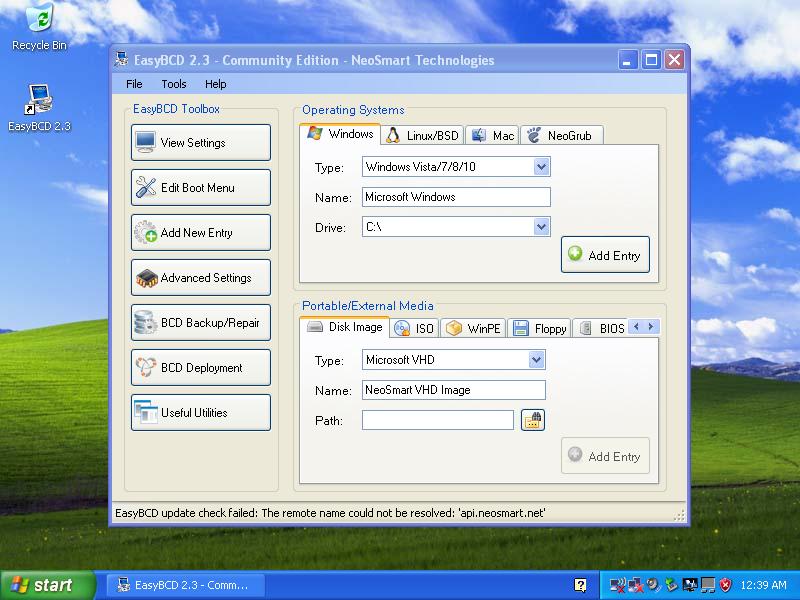
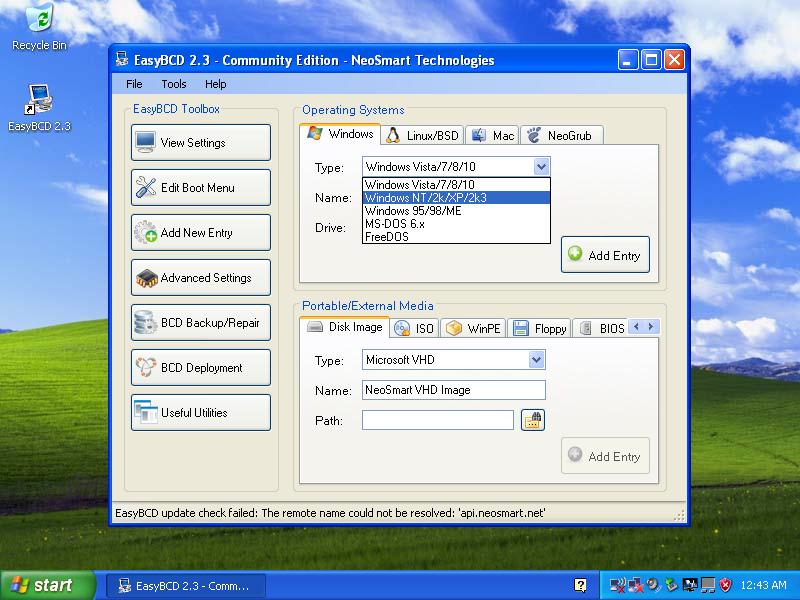
18. Select "Add Entry".
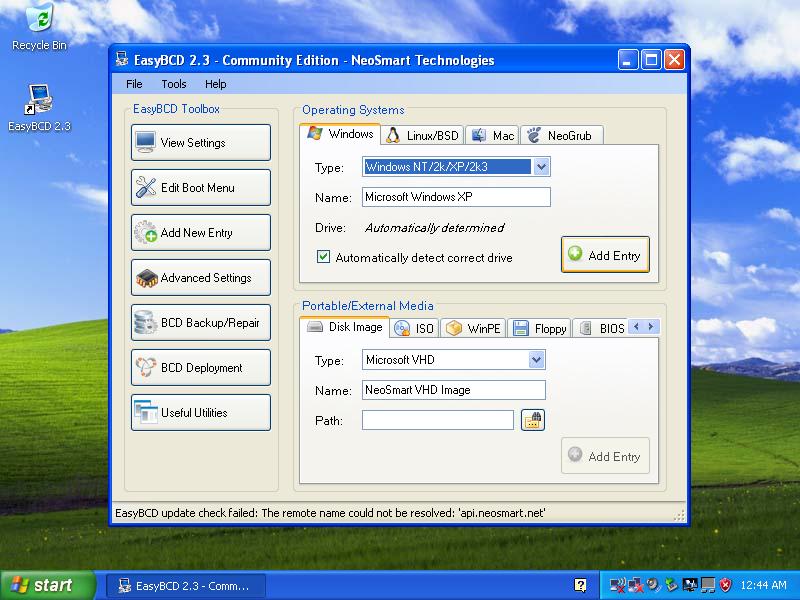
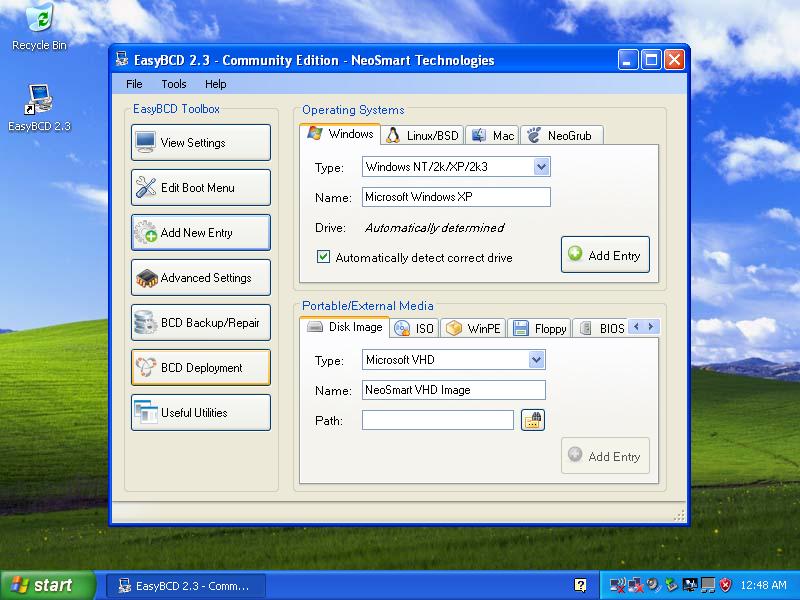
19. Click "BCD Deployment"
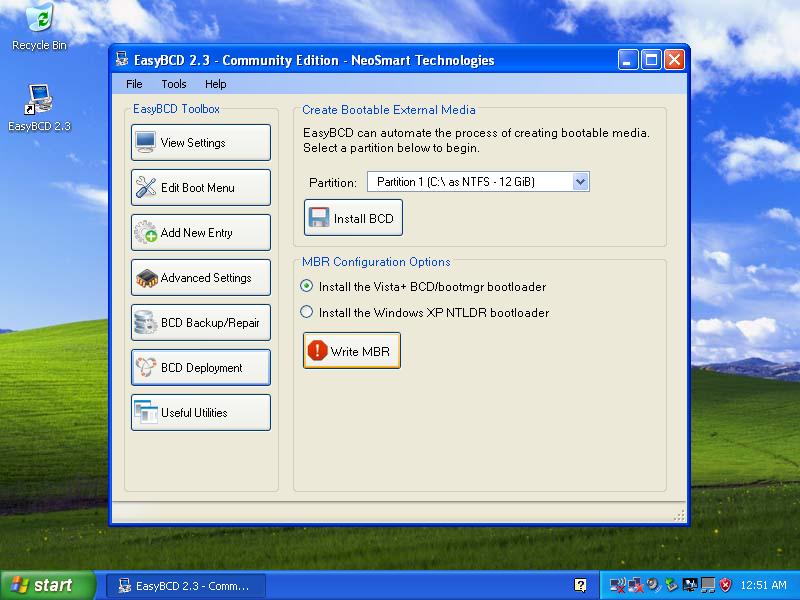
20. Click "Write MBR".
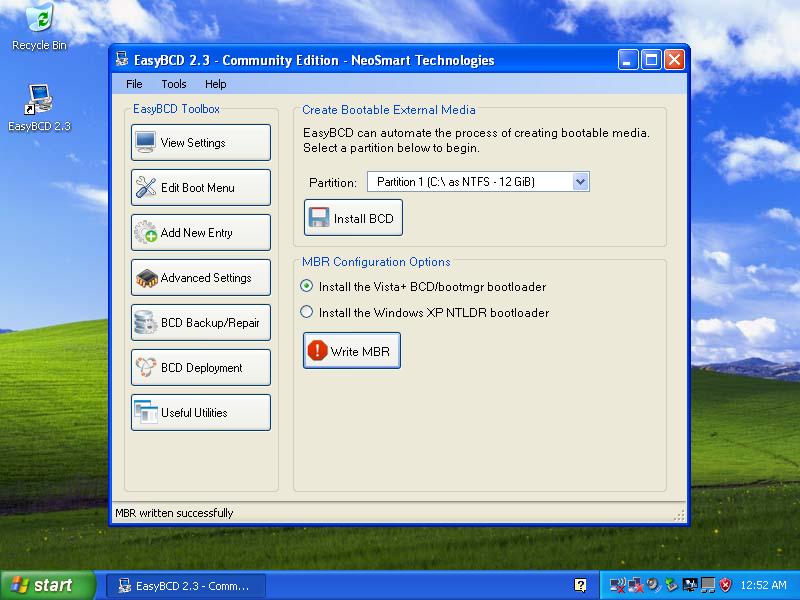
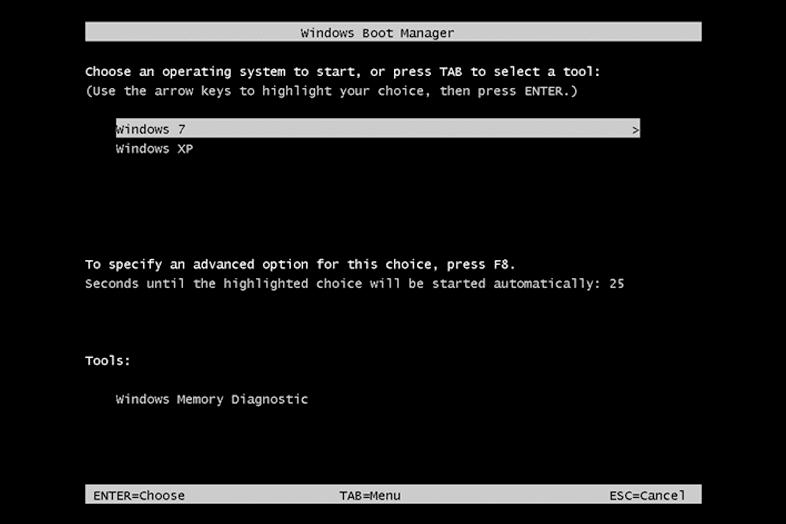
21. Ensure that MBR is written successfully. Close EasyBCD. Restart computer.
Source: Dual Boot Windows 7 and Windows XP
1. First of all, create two hard disk partitions for the two operating systems, Windows XP and Windows 7 respectively in this demonstration.
2. Install Windows 7 in the first partition.
3. Install Windows XP in the second partition. Note that Windows 7 becomes invisible because the boot loader contains entry for Windows XP only.
4. Modify boot loader to include Windows 7 entry. This can be accomplished with third-party software utility. EasyBCD is a freeware to accomplish the task. Download EasyBCD from the publisher website.
5. Microsoft .NET Framework 2.0 is required to run EasyBCD. Download .NET Framework 2.0 Service Pack 2 Update for Windows Server 2003 and Windows XP from official Microsoft website.
6. Install .NET Framework 2.0 Service Pack 2 Update for Windows Server 2003 and Windows XP.
7. Select "I have read and ACCEPT the terms of the License Agreement". Click "Install" to proceed.
8. Click "Exit" to finish .NET Framework 2.0 installation.
9. Install EasyBCD.
10. Click "Next" to continue.
11. Click "I Agree".
12. Click "Next".
13. Click "Install".
14. Click "Finish".
15. Click "Go".
16. Click "Add New Entry".
17. On Operating System menu, select "Windows NT/2k/XP/2k3".
18. Select "Add Entry".
19. Click "BCD Deployment"
20. Click "Write MBR".
21. Ensure that MBR is written successfully. Close EasyBCD. Restart computer.
Source: Dual Boot Windows 7 and Windows XP