PCs usually come with an OEM Windows license. Over time the COA label may fade away and become unreadable. If the Windows installation in hard drive is intact, there are software tools to retrieve the activation code even if it fails to boot. But if Windows is erased or after a clean re-install, the majority of software tools no longer can retrieve the original activation code. But for Windows 7 in certain manufacturers' PC machine, OEM license can be re-activated from retail software copy installation without OEM COA label. Raymond.cc's Windows 7 OEM License Installer can install the correct manufacturer OEM security certificate and product key to the Windows 7 computer.
The useful thing about the Windows 7 OEM License Installer program is it does not need to make a backup first. Currently Windows 7 machines from Acer, Packard Bell, eMachines, Advent, Asus, Dell, Fujitsu, Gigabyte, HP, Compaq, Lenovo, IBM, Medion, MSI, Samsung, Sony and Toshiba are supported.
Following are the steps for a clean install of the original Windows 7 operating system.
1. Install the same edition of Windows 7 that was installed on the computer by the manufacturer (32-bit <> 64-bit swapping is permitted).
2. Download Windows 7 OEM License Installer from Raymond.cc website. Note that this program may produce false positive alerts by antivirus software. In that case, temporarily disable the antivirus software until Windows 7 activation is accomplished.
3. Run Windows 7 OEM License Installer.

4. Click "BIOS Info" to check BIOS for information.

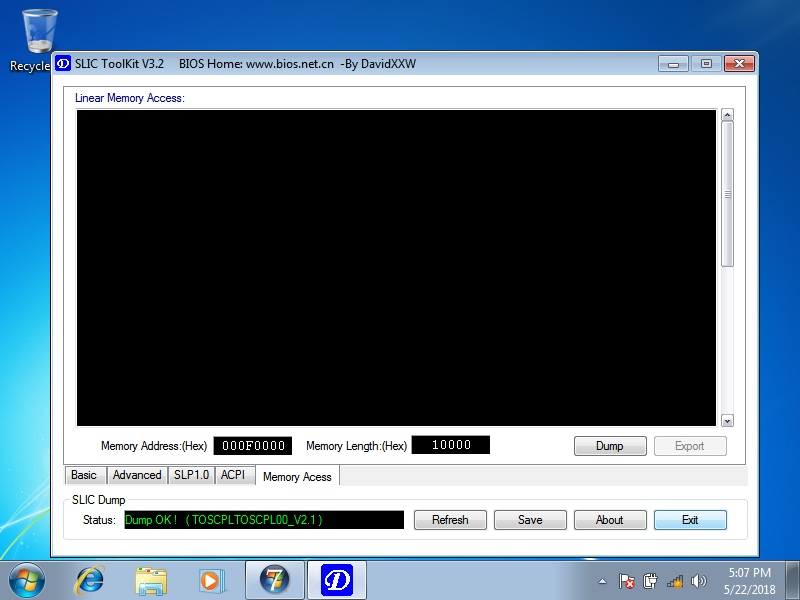
5. Click "OK" to show BIOS information. Ensure that SLIC Toolkit shows 'OK' and 'V2.1'.

6. Click "Exit" to go back to main menu selection.
7. Click "Install Cert & Key".

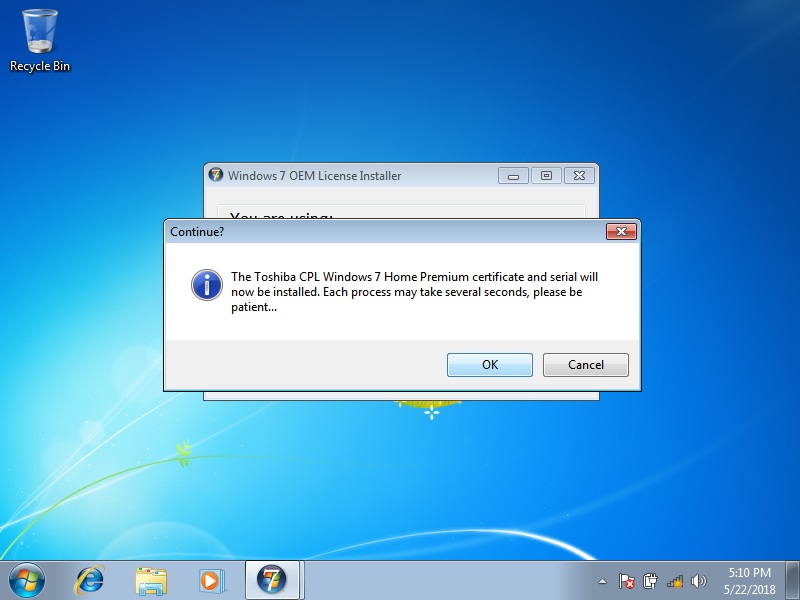
8. Click "OK" to start and wait until the process finishes.
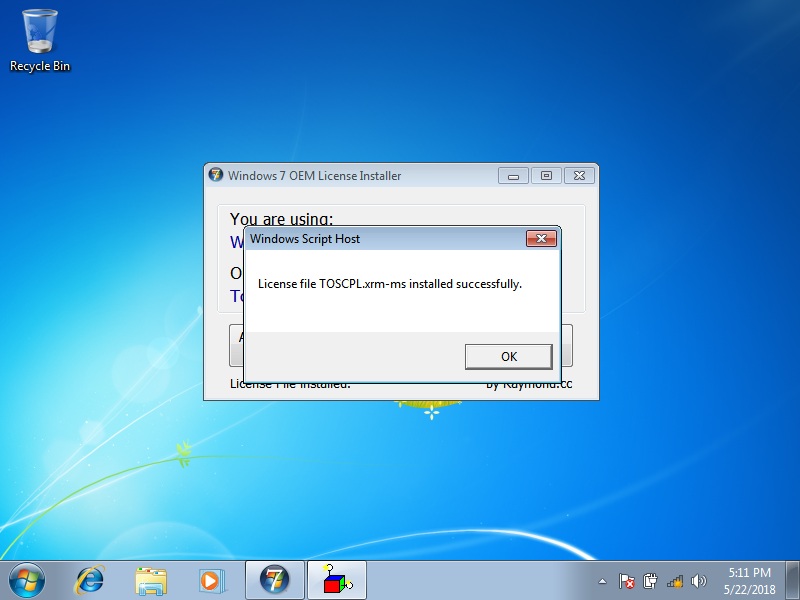
9. Click "Activation Status" to check status.
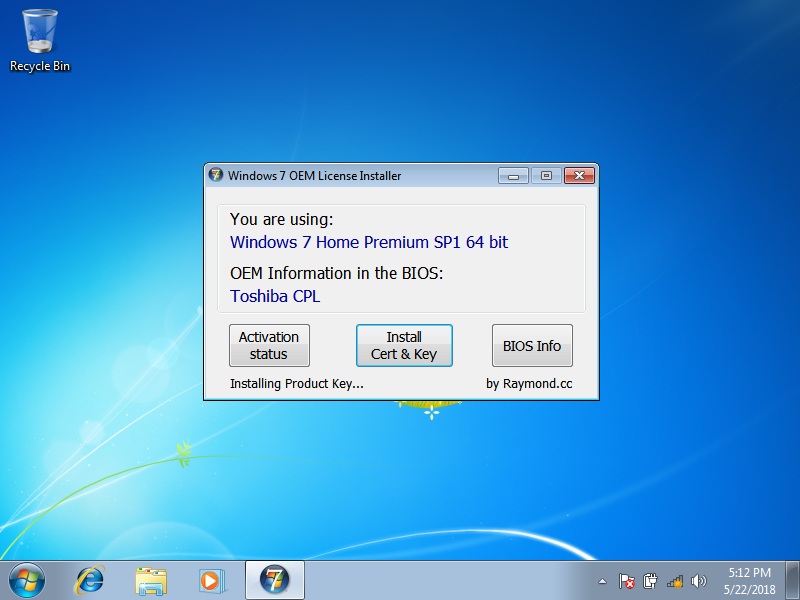
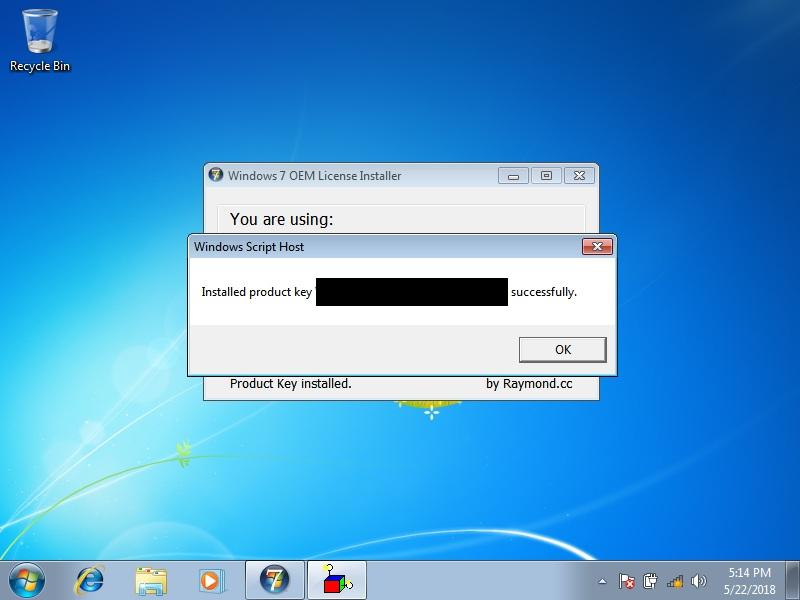
10. If all has gone well the last popup will indicate Windows has been successfully activated. Click 'OK' to finish.
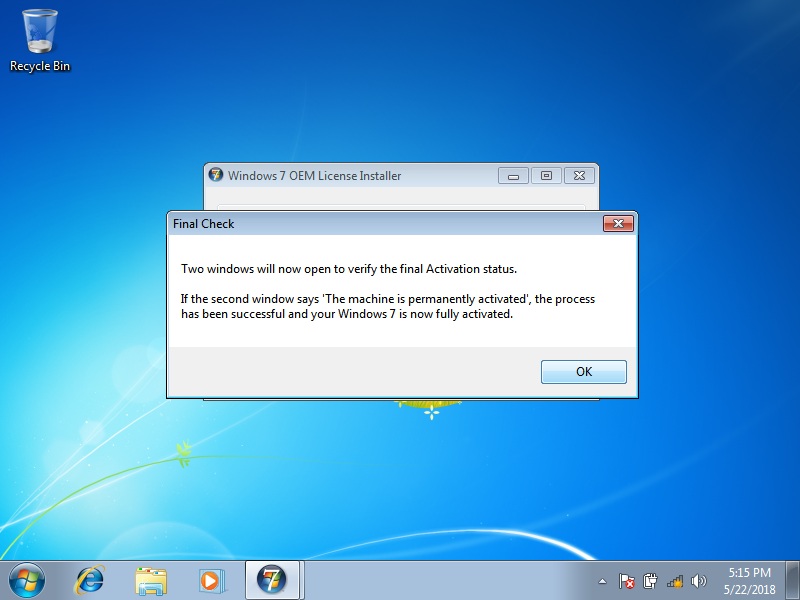
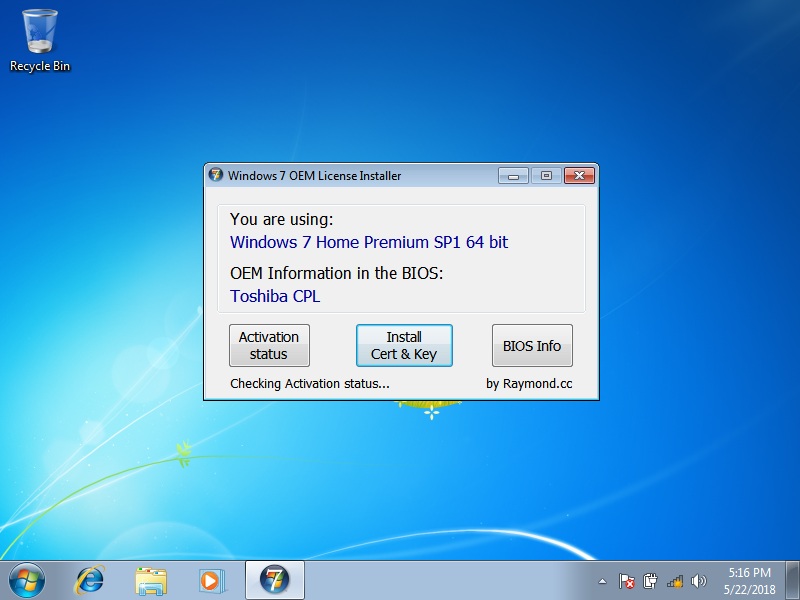
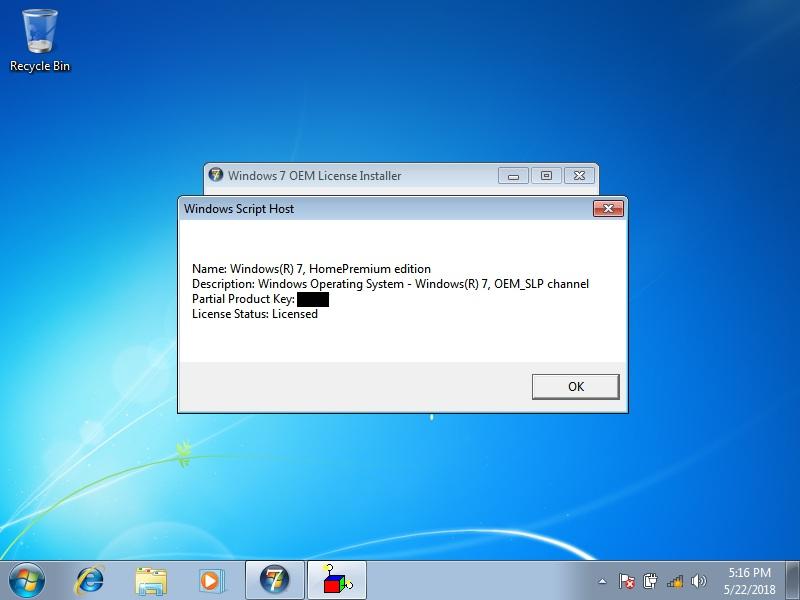
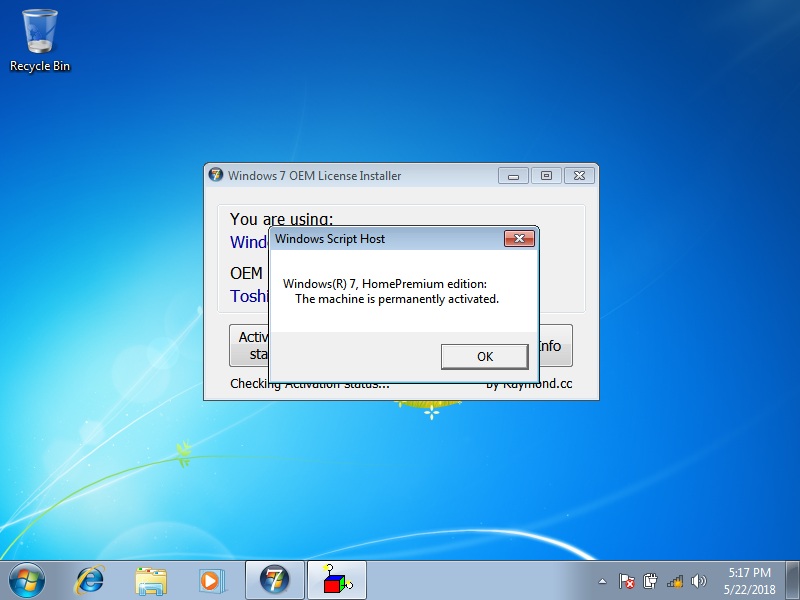
11. Note that the program will only work if the computer is manufactured from one of the companies listed above, if not, it will fail to work and Windows 7 installation will not be activated. Windows 7 OEM License Installer will reactivate OEM copy of Windows 7 Home basic, Home Premium, Professional and Ultimate.
Source: 3 Tools to Backup and Restore Windows 7 and Vista OEM Activation License
The useful thing about the Windows 7 OEM License Installer program is it does not need to make a backup first. Currently Windows 7 machines from Acer, Packard Bell, eMachines, Advent, Asus, Dell, Fujitsu, Gigabyte, HP, Compaq, Lenovo, IBM, Medion, MSI, Samsung, Sony and Toshiba are supported.
Following are the steps for a clean install of the original Windows 7 operating system.
1. Install the same edition of Windows 7 that was installed on the computer by the manufacturer (32-bit <> 64-bit swapping is permitted).
2. Download Windows 7 OEM License Installer from Raymond.cc website. Note that this program may produce false positive alerts by antivirus software. In that case, temporarily disable the antivirus software until Windows 7 activation is accomplished.
3. Run Windows 7 OEM License Installer.
4. Click "BIOS Info" to check BIOS for information.
5. Click "OK" to show BIOS information. Ensure that SLIC Toolkit shows 'OK' and 'V2.1'.
6. Click "Exit" to go back to main menu selection.
7. Click "Install Cert & Key".
8. Click "OK" to start and wait until the process finishes.
9. Click "Activation Status" to check status.
10. If all has gone well the last popup will indicate Windows has been successfully activated. Click 'OK' to finish.
11. Note that the program will only work if the computer is manufactured from one of the companies listed above, if not, it will fail to work and Windows 7 installation will not be activated. Windows 7 OEM License Installer will reactivate OEM copy of Windows 7 Home basic, Home Premium, Professional and Ultimate.
Source: 3 Tools to Backup and Restore Windows 7 and Vista OEM Activation License